CARICOM Advance Passenger Information System eAPIS Portal Cayman Islands
Organization : Customs & Border Control of the Cayman Islands
Facility : CARICOM Advance Passenger Information System eAPIS Portal
Country : Cayman Islands
Website : https://caricomeapis.org/Default.aspx?tabid=367
| Want to comment on this post? Go to bottom of this page. |
|---|
What is CARICOM Advance Passenger Information System eAPIS Portal?
The Customs & Border Control of the Cayman Islands uses the Advance Passenger Information System (APIS) to collect traveler and crew details for all commercial and private flights and maritime vessels arriving or departing the territory.
Related / Similar Facility : DHRS Practising Licence Renewal Cayman Islands

How To Access CARICOM Advance Passenger Information System Portal?
Users reporting APIS using the eAPIS Excel Spreadsheet Template are required to submit the files through CARICOM eApis portal at: www.caricomeapis.org . Please find instructions below on how to Register, Login, Download eAPIS Spreadsheet Template and Upload the eAPIS spreadsheet, Vessel XML and Flight UN/EDIFACT files.
Registration
If a user does not have an account, registration is required before using the portal. If a user is responsible for multiple vessels only one registration is required as individual vessel information is captured in the “General Information” section of the spreadsheet.
Follow the link www.caricomeapis.org to take the user to the CARICOM Advance Passenger Home Page. Support documentation on Business Rules, Country, Airport and Seaport codes located on the right column. On the Home click on the Register Icon. Complete the Registration information and then click on the “register” button.
Login
** If you have an existing account please login and continue to submit your APIS file
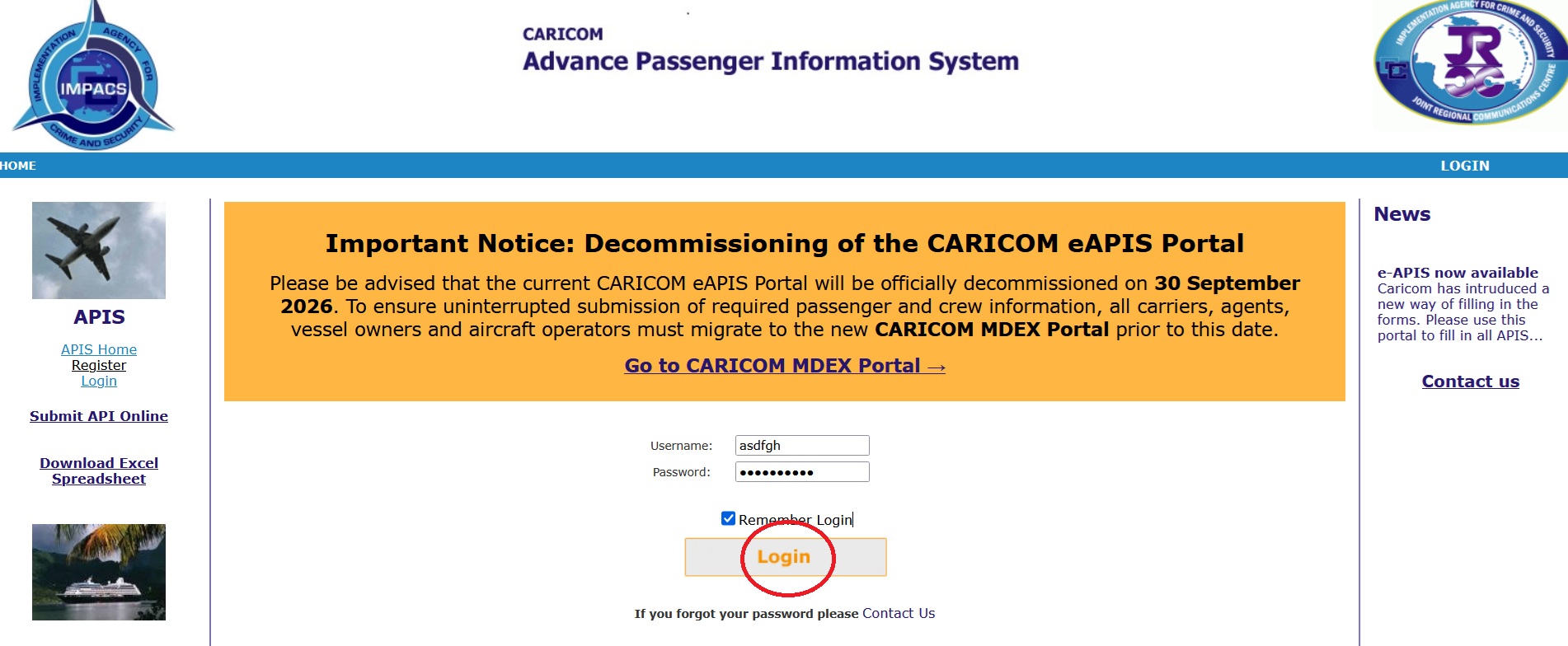
** Follow the link www.caricomeapis.org to take the user to the CARICOM Advance Passenger Home Page.
** On the Home page, click on the Login Icon
** Fill in the User Name: and the Password: and hit the enter key.
Download
** The download screen will appear when the User Name and Password is entered. In this screen, click on the Download And Upload link stated above. The user is then taken to the following screen
** This screen provides the option to Download the eAPIS Excel Template or Upload a completed eAPIS Excel spreadsheet by clicking on the relative link. Instructional documentation on how to populate the files are available on the right column of the page for download.
** This screen has Two (2) functions relating to the Excel Version 6 spreadsheet.
** The user has the option to download the Excel Version 6 spreadsheet for either Flights or Vessels to be completed and uploaded via Upload section below
** Once the relative button is clicked the user will receive the prompt.
** The user will be prompted with the following screen.
** The example above saved to the desktop as a zipped document. Once this zipped folder appears in the designated path, the file should be unzipped and saved as a Template, therefore the process does not need to be repeated. The user can now start populating the spreadsheet for submission.
** It is recommended that once the file is completed, save it as the “Flight/Vessel ID, Depart, Arrival Port and Date” file name of voyage (e.g. “JJ1234_POS_BGI_20140302.xls”) therefore preserving the Template for further use or reference
Upload
** Once completed any of the following formats can be submitted through the “Upload” section by selecting the relative link:
Aviation: Aviation eAPIS Excel Spreadsheet; UNEDIFACT file formats.
Maritime: Maritime eAPIS Excel Spreadsheet; XML file formats.
** Formats are based on relative Aviation or Maritime CARICOM APIS Guidelines. After clicking on the relative link as indicated above, the user will be prompted to browse to where the file was saved.
** When the file is submitted it will be validated. If errors are detected, the user will be prompted with a message stating what needs to be corrected. This will continue until all errors in the file are corrected.
** When all required information is correct and file has been uploaded, the user will receive a message stating “Operation ended successfully”.
** Please feel free to contact the Joint Regional Communications Centre (JRCC) at the numbers listed below should you required additional assistance with submitting your APIS file.